Common WooCommerce Inventory Management Challenges
Inventory management is a critical component of running an eCommerce business. Inaccurate stock levels, mismanagement, and poor workflows lead to overselling, stockouts, and operational inefficiencies. When running a WooCommerce store, the challenges can become more complex as you expand your product range, sales channels, or locations.
This article covers the common inventory management challenges that WooCommerce store owners face, detailing both the technical reasons behind them and the ways to address them. We’ll also use real-world examples, including multi-location inventory management tools, to show how complex inventory problems can be resolved effectively.
Common WooCommerce Inventory Management Challenges (and How to Fix Them Effectively)
Effective inventory management is crucial for maintaining smooth operations in your WooCommerce store. However, many store owners face challenges as their business grows. This section explores the most common inventory management issues and practical solutions to address them efficiently.
- Inventory Not Updating Correctly After Orders
Common Causes
Inventory update issues typically arise when stock counts fail to reflect the actual availability after an order is placed. This may happen due to several reasons:
- Caching: If your site uses caching plugins, outdated inventory data may be displayed to customers.
- Plugin Conflicts: Certain plugins may interrupt WooCommerce’s stock reduction process, leading to discrepancies.
- Order Status Misconfigurations: WooCommerce only adjusts stock when orders transition to specific statuses (e.g., “Processing” or “Completed”). If these status transitions are modified or skipped, stock won’t update.
- Failed or Incomplete Orders: WooCommerce may reduce stock for failed or pending orders, causing discrepancies if the stock is not reinstated.
Solutions
- Exclude product, cart, and checkout pages from caching.
- Test for plugin conflicts by disabling all non-essential plugins and monitoring stock behavior.
- Ensure that order statuses are configured correctly to trigger stock updates.
- Use manual stock reconciliation tools and ensure stock is reintroduced when orders fail or are refunded.
- Overselling and Negative Stock Quantities
Why It Happens
Overselling occurs when stock levels go below zero due to the allowance of backorders or because stock has not been updated properly. This happens frequently when:
- Backorders Are Allowed: WooCommerce allows customers to purchase items even if they are out of stock.
- No Stock Reservation: Multiple customers may purchase the same last item before the stock is adjusted.
- Inconsistent Multi-channel Sales: Selling through WooCommerce and other channels (e.g., POS, marketplaces) without synchronized stock.
How to Prevent It
- Disable backorders unless absolutely necessary.
- Use stock reservation systems that hold stock during checkout to avoid overselling.
- Regularly sync inventory between WooCommerce and external platforms.
- For multi-location stores, ensure stock updates are localized to the specific warehouse or store handling the order.
- Manual Stock Adjustments Leading to Errors
Common Issues
Store owners often adjust stock manually for returns, product launches, or inventory mismatches. However, these manual changes can lead to:
- Typographical errors when entering stock numbers.
- Inconsistent updates between WooCommerce and external tools.
- Failure to adjust stock across multiple locations, leading to discrepancies.
How to Minimize Errors
- Use bulk import/export tools for accurate stock updates.
- Centralize all stock management in a single dashboard to avoid misalignment across locations.
- Implement clear workflows for manual stock adjustments, ensuring that each change is logged and reconciled regularly.
Multi-location inventory tools provide a centralized system for tracking stock across multiple locations, helping store owners avoid manual errors.
- Low-Stock Alerts Not Triggering
Common Causes
Low-stock notifications often fail due to incorrect configuration or delays in system updates. Potential causes include:
- Incorrect threshold settings in WooCommerce for low-stock notifications.
- Failed CRON jobs that prevent the timely execution of stock alerts.
- Outdated inventory data caused by caching or server issues.
How to Fix It
- Regularly test and verify low-stock thresholds to ensure they are appropriate for each product.
- Check if CRON jobs are functioning properly to trigger stock update routines.
- Configure multi-location stock alerts so that each location has its own low-stock warning, instead of relying on a global setting.
- Multi-Location Inventory Management Challenges
WooCommerce doesn’t support multiple physical locations or warehouses natively. This creates difficulties when managing stock across several regions or branches. For example:
- Inaccurate stock counts across different warehouses.
- Difficulty tracking stock by location, especially when fulfilling orders from the wrong warehouse.
- Limited reporting on inventory by location.
Using Multi-Location Solutions
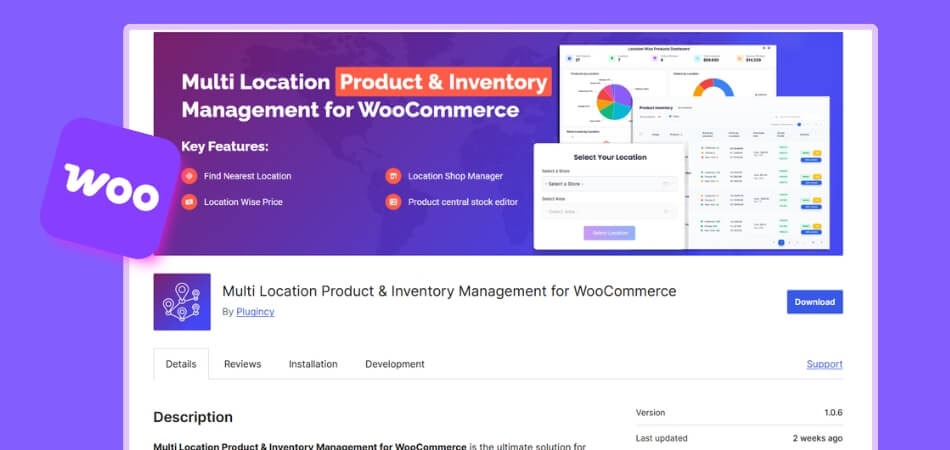
A multi-location inventory management tool can help resolve these challenges. For example, the Multi Location Product & Inventory Management for WooCommerce plugin provides features like:
- Location-based Stock Tracking: Each location (warehouse, store, or branch) can maintain its own stock levels.
- Centralized Reporting: View inventory across all locations from a single dashboard.
- Location-specific Low-stock Alerts: Get notifications when stock levels fall below a certain threshold at any location.
- Location Assignment for Products: Assign specific products to particular warehouses or stores, which ensures stock accuracy when orders are fulfilled.
These features offer a more organized and efficient way of handling stock in multi-location setups, making it easier to track and manage inventory across different physical sites. In fact, choosing the best WooCommerce inventory management plugin ensures that your store can scale without the risk of stock discrepancies or overselling.
- Inventory Divergence Across Sales Channels
How It Happens
As store owners expand their sales channels (e.g., POS, online marketplaces, social commerce), stock discrepancies arise due to a lack of synchronization. WooCommerce does not natively sync stock across multiple sales channels, which often results in:
- Stock being oversold or unavailable in one channel but marked as available in another.
- Delayed inventory updates from one platform to the next.
How to Manage Stock Across Channels
- Use integration tools that automatically sync stock between WooCommerce and external channels like marketplaces or POS systems.
- Regularly import and export stock data to ensure consistency across platforms.
- Use multi-location stock tools to maintain real-time stock updates for all locations, regardless of the sales channel.
- Difficulty Managing Variable Product Stock
Complexity in WooCommerce Core
WooCommerce allows stock management at both the parent product level and variation level. However, some store owners forget to enable stock for individual variations, leading to issues such as:
- Mismatched stock levels between variations.
- Inaccurate availability for size, color, or other attributes.
Recommended Practices
- Always manage stock at the variation level for variable products.
- Use multi-location inventory tools to assign stock to specific variations per warehouse.
- Test variation stock updates to ensure that inventory data remains accurate across all product types and locations.
- Phantom Inventory (Stock Showing but Not Actually Present)
What Causes Phantom Inventory?
Phantom inventory occurs when WooCommerce displays items as “in stock” even though they are no longer available due to:
- Unprocessed returns or damaged goods that were not restocked.
- Inaccurate stock logs from manual updates or external integrations.
- Order processing errors that do not update stock correctly.
How to Fix Phantom Stock Issues
- Implement a routine audit schedule to ensure physical stock aligns with system records.
- Use multi-location stock tracking to identify where discrepancies occur (e.g., returns not being added back to the correct location).
- Create a clear return workflow to ensure that returned items are restocked immediately.
- Slow Restocking and Stockouts
Operational Factors
Without automated restocking or demand forecasting, stores may experience delays in inventory updates, resulting in stockouts. Contributing factors include:
- Manual restocking that fails to account for demand spikes.
- Supplier delays that are not proactively addressed.
- Inconsistent stock management across multiple locations.
How to Improve Restocking Efficiency
- Set reorder points based on historical sales data and lead time from suppliers.
- Implement safety stock calculations to ensure you always have inventory available.
- Use multi-location tools to manage stock levels per location and ensure that orders are filled from the nearest warehouse with available stock.
- No Native Purchase Order or Supplier Management in WooCommerce Core
WooCommerce does not have built-in features for managing purchase orders or tracking suppliers. Store owners often rely on third-party tools to address these needs.
Addressing the Gap
To manage purchase orders efficiently:
- Use a multi-location inventory tool that includes purchase order tracking and supplier management.
- Use CSV imports to streamline bulk product updates and maintain detailed records of supplier information and order history.
- For multi-location stores, assign purchase orders to the correct warehouse based on inventory needs.
- Bulk Product Updates Becoming Inefficient at Scale
Bulk Editing Limitations
WooCommerce’s default interface is not optimized for bulk product edits. As product catalogs grow, manual edits become inefficient and error-prone.
Bulk Update Recommendations
- Use CSV import/export to manage large-scale product updates.
- Ensure product attributes like SKU, stock status, and location are correctly mapped when performing bulk actions.
- Use a multi-location inventory tool to update stock levels across multiple warehouses efficiently.
- Stock Getting Out of Sync Due to Order Status Mismanagement
Why It Happens
If order statuses are not managed properly (e.g., refunds not linked to stock updates), WooCommerce stock records become inaccurate.
How to Fix It
- Define clear rules for stock updates during order status transitions.
- For multi-location stores, ensure that stock is updated at the correct warehouse.
Choosing the Right Multi-Location Inventory Plugin for WooCommerce
Picking the right multi-location inventory plugin is important when your store grows beyond a single warehouse or shop. WooCommerce handles basic stock tasks on its own, but managing several locations at once needs stronger tools. The right plugin helps you update stock accurately, reduce mistakes, and keep every location in sync without extra work.
Why It’s Important
While WooCommerce can handle basic inventory needs, expanding to multiple locations requires specialized tools. A well-suited multi-location inventory plugin ensures smooth operations, reduces errors, and provides better control over stock management.
Factors to Consider
- Compatibility with other WooCommerce plugins or integrations, such as POS systems, shipping, or accounting tools.
- User-Friendliness: The interface should be easy to navigate for both beginners and advanced users.
- Real-Time Synchronization: Ensure that the plugin offers real-time stock updates across all locations.
Reporting Capabilities: Look for plugins that offer detailed reports on inventory movement, low-stock warnings, and sales performance.
Best Practices to Prevent Most Inventory Issues
Regular audits are the foundation of reliable inventory. Physically counting stock and comparing it with system records helps catch phantom inventory, lost items, or miscounts early. For multi-location stores, audits per warehouse or store branch are essential.
An audit schedule could look like:
- Weekly: Check fast-moving SKUs, restock critical items
- Monthly: Full counts for one or two warehouses, rotate across locations
- Quarterly: Deep audit of entire inventory, review dead stock, damaged goods, and returns
This steady cadence helps keep your “system stock” aligned with reality.
Use Automated Stock Syncing Wherever Possible
Whenever orders are placed, canceled, refunded, returned, or stock imported, automation reduces human error. Use inventory tools that handle stock decrement/increment, log changes, and manage stock per location. For large or multi-warehouse stores, automation is often the only way to stay accurate.
Set Safety Stock Levels to Avoid Sudden Stockouts
For products with steady sales or seasonal demand, maintain a buffer stock, a “safety net” to avoid stockouts. Calculate safety stock based on lead time, sales velocity, and supplier reliability. Adjust safety stock per location depending on sales history and regional demand.
Build a Standard Operating Procedure (SOP) for Inventory Control
A documented SOP ensures consistency. It should define:
- Who updates the stock and when
- How to handle orders, returns, cancellations
- How to perform audits and reconciliations
- How to manage restocking and supplier orders
- How to handle multi-location stock transfer or inter-warehouse moves
An SOP is especially critical when multiple people manage stock, common in growing WooCommerce stores.
Conclusion
While WooCommerce provides essential features for basic inventory management, scaling up and managing multiple warehouses or sales channels introduces a variety of challenges. By understanding common WooCommerce inventory management challenges such as overselling, stock discrepancies, and inefficient reporting, store owners can implement strategies that reduce these challenges. Using multi-location inventory tools and advanced inventory management practices helps ensure that stock is consistently accurate and properly aligned with operational needs.


